



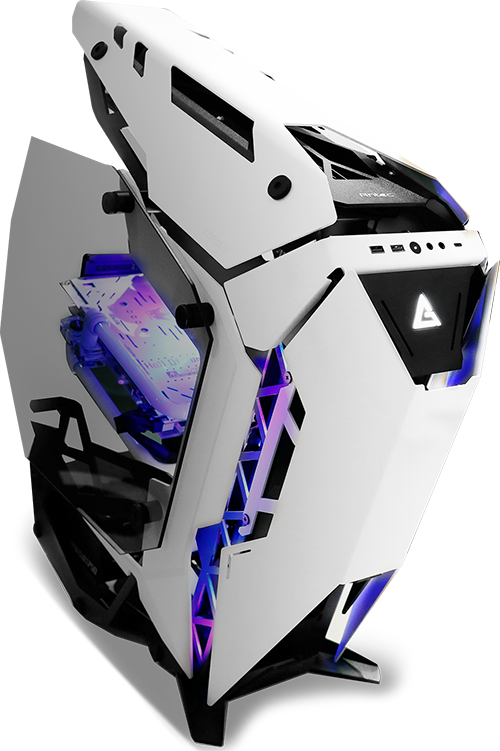
Quick Setup Guide
Titanium PC — Quick Setup Guide
Thank you for choosing Titanium PC!
This guide will help you safely unpack, connect, and start your new computer.
1. Before You Unbox
-
Place the box on a flat surface.
-
Have scissors or a cutter handy (avoid deep cuts).
-
Wash/dry hands before handling components.
2. What’s Inside the Box
Your package may include:
-
PC Tower (System Unit)
-
Power Cable
-
Display Cable (HDMI / DP) (if ordered)
-
Keyboard & Mouse (if ordered)
-
Manuals
-
Invoice (digital or printed)
If anything is missing, contact us immediately.
3. Safe Unboxing & Packaging Care
-
Remove foam padding and protective film carefully.
-
Keep the packaging in a safe place. In case of returns, repairs, or courier claims are needed (especially for shipped builds).
-
For shipped systems:
-
Internal GPU support padding may be present — DO NOT discard until PC is tested.
-
Bubble wrap & foam should be saved for any future transport.
-
4. Internal Safety (For Shipped PCs)
Some PCs may have internal transport foam to protect the GPU.
Before powering on:
-
Make sure there is no padding or foam inside the PC. If there is following the steps below:
-
Remove the tempered glass side panel (if applicable).
-
Take out any visible foam blocks or transport inserts.
-
Reinstall panel securely.
If unsure, call or message us with a photo — we will guide you.
5. Connecting Your PC
-
Connect power cable to PSU and wall.
-
Connect monitor to GPU output:
-
Dedicated GPU Ports: HDMI / DisplayPort
(Avoid motherboard HDMI unless specified)
-
-
Plug keyboard & mouse into USB ports.
-
Plug Ethernet cable (if you want to use LAN).
- Connect your wifi antenna (if needed).
6. First Boot
-
Press the power button once.
-
Initial boot may take 15-40 seconds due to first-time initialization.
-
Your Windows is installed, complete the setup by following steps as guided.
-
Connect your wifi and enter your email to complete windows setup.
-
Windows will finalize setup and may restart.
7. Software & Drivers
Your PC comes with the following:
-
Windows 11 Activated
-
Latest GPU Drivers (NVIDIA/AMD)
-
Motherboard Utilities (Optional)
-
Basic Performance Optimizations
If updates prompt, allow them to complete.
8. Internet & Activation
-
Connect to Wi-Fi or Ethernet.
-
Sign into Microsoft account if desired.
9. Benchmark & Temperature Check (Optional)
We pre-test your system but you may verify:
-
Open Task Manager → Performance
-
Ensure temps stay within safe ranges
10. Gaming & Performance Tips
-
Use DisplayPort for high refresh rate monitors.
-
Keep GPU/Windows drivers updated monthly.
11. Handling & Maintenance
- Dust every 2–3 months (front & top mesh filters).
-
Avoid moving PC while powered on.
12. Support & Warranty
For support, Email us at sales@titaniumpc.com.au with:
-
Order number
-
Brief issue description
-
Photos/video if needed
Dead-on-arrival (DOA) reporting window: 72 hours depending on purchase conditions.
Warranty is mentioned on invoice/website.
13. Returns & Transport Reminders
If PC needs to be transported:
-
Reuse original foam/box whenever possible
-
Always support GPU side against shock
-
Never lay the PC on glass panel side
14. Enjoy Your PC!
Whether for gaming, editing, studies, or work — we built this for performance and reliability.